Install Odoo on Ubuntu 24.04: Odoo 19 and 20 step by step
Odotify team · Published · 8 min read
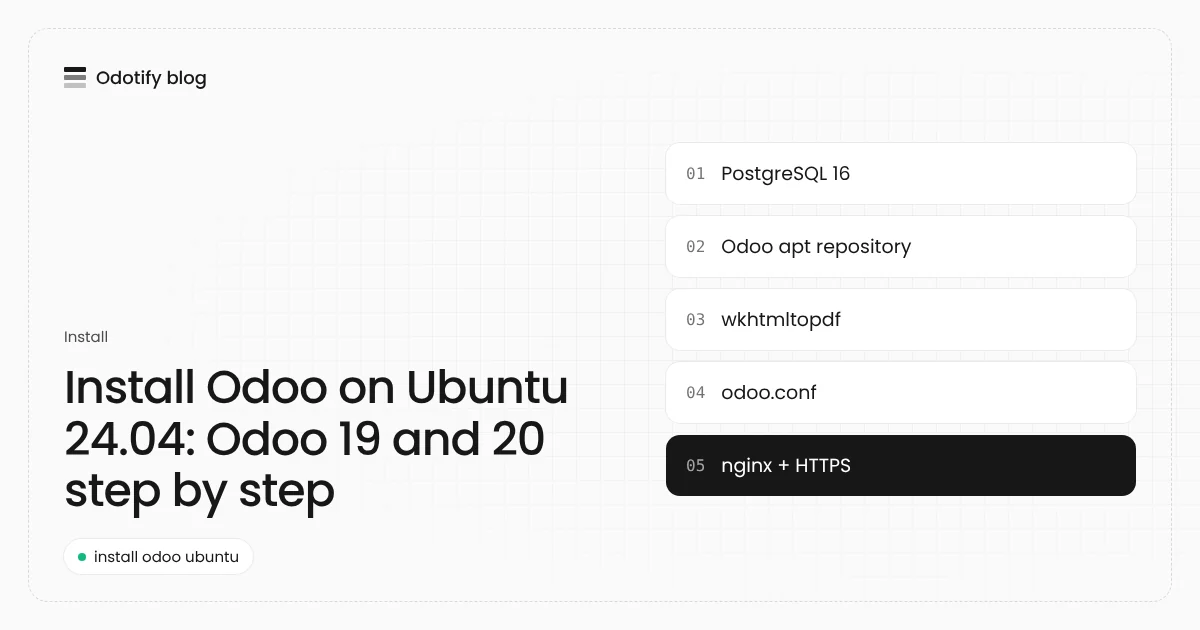
This guide installs Odoo on a fresh Ubuntu 24.04 LTS server the way Odoo documents it: with its own Debian package, PostgreSQL from Ubuntu and nginx in front. It works for Odoo 19 and Odoo 20 Community. At the end you have Odoo answering on your domain over HTTPS, with the settings a production server needs. Every command was checked against Odoo's documentation and package files on 19 November 2026.
Which Ubuntu version should you use for Odoo?
Use Ubuntu 24.04 LTS (Noble). Odoo's documentation says the Odoo 19 Debian package supports Ubuntu Noble, and 24.04 ships what both current versions need:
| Requirement | Odoo 19 | Odoo 20 | Ubuntu 24.04 ships |
|---|---|---|---|
| Python | 3.10 to 3.14 | 3.12 to 3.14 | 3.12 |
| PostgreSQL | 13 or newer | 16 or newer | 16 |
These minimums come from odoo/release.py in each branch of Odoo's source. Odoo 20 is the reason to skip older systems: Ubuntu 22.04 ships PostgreSQL 14, which Odoo 20 refuses. Our Odoo 20 hosting guide covers the rest of what changed.
What server do you need?
A small company runs well on 2 vCPU, 4 GB of memory and 40 GB of SSD. Odoo's own sizing rule is one worker for about 6 concurrent users and at most (CPU × 2) + 1 workers, so 2 vCPU allow up to 5 workers: in theory about 30 people working at the same moment, in practice fewer once reports and imports run. CPU decides how many people can work at once; memory decides how many workers you can afford. Our Odoo workers guide has the full calculation and a sizing table, and Odoo server requirements covers disk and memory.
Before you start you need:
- a server with Ubuntu 24.04 and a user with
sudo; - a domain name such as
erp.example.compointing at the server's IP address; - ports 22, 80 and 443 open. Keep 8069 and 8072 closed to the internet.
Steps to install Odoo on Ubuntu 24.04
- Update the system. Run
sudo apt update && sudo apt upgrade -y, then reboot if a new kernel was installed. - Install PostgreSQL. Run
sudo apt install postgresql -y. The Odoo package expects PostgreSQL on the same server and creates its own database user. - Add Odoo's apt repository and install Odoo. Use the commands below, with
19.0or20.0. - Install wkhtmltopdf so invoices and quotations print as PDF with headers and footers.
- Configure Odoo in
/etc/odoo/odoo.conf: master password, database manager off, proxy mode, workers. - Put nginx and HTTPS in front, with the websocket path sent to port 8072.
- Create your database in the browser and set up backups before anyone starts working.
Install Odoo from Odoo's repository
Odoo publishes a signed nightly repository for Community. These are the commands from Odoo's documentation, for Odoo 19:
wget -q -O - https://nightly.odoo.com/odoo.key | sudo gpg --dearmor -o /usr/share/keyrings/odoo-archive-keyring.gpg
echo 'deb [signed-by=/usr/share/keyrings/odoo-archive-keyring.gpg] https://nightly.odoo.com/19.0/nightly/deb/ ./' | sudo tee /etc/apt/sources.list.d/odoo.list
sudo apt-get update && sudo apt-get install odoo -y
For Odoo 20, write 20.0 instead of 19.0 in the second line. The package installs every Python dependency from Ubuntu's own packages, so there is no virtualenv or pip to manage.
What the package sets up for you, from its install script:
- a system user and group
odoo, with its data in/var/lib/odoo; - a PostgreSQL role
odoothat can create databases; - the configuration file
/etc/odoo/odoo.conf, readable only byodoo; - logs in
/var/log/odoo/odoo-server.log; - a systemd service
odoothat starts with the server.
Check it is running with sudo systemctl status odoo. Odoo now answers on port 8069 of the server itself.
Odoo Enterprise is not in this repository. With an Enterprise subscription you download the Enterprise .deb from Odoo's download page and install it with sudo apt install ./odoo_19.0+e.latest_all.deb (the file name depends on the version you download).
Install wkhtmltopdf
Odoo prints PDF reports with wkhtmltopdf 0.12.6, the build with patched Qt; the version in Ubuntu's archive cannot draw report headers and footers. The 0.12.6.1-3 release on GitHub has no Ubuntu 24.04 build, so install the Ubuntu 22.04 (jammy) build and let apt pull in its dependencies:
wget https://github.com/wkhtmltopdf/packaging/releases/download/0.12.6.1-3/wkhtmltox_0.12.6.1-3.jammy_amd64.deb
sudo apt install ./wkhtmltox_0.12.6.1-3.jammy_amd64.deb -y
wkhtmltopdf --version
The last line should say with patched qt. On an ARM server, use the arm64 file of the same release.
Configure odoo.conf for production
Open /etc/odoo/odoo.conf with sudo nano /etc/odoo/odoo.conf and make it look like this for a 2 vCPU server:
[options]
admin_passwd = a-long-random-password
db_host = False
db_port = False
db_user = odoo
db_password = False
list_db = False
proxy_mode = True
workers = 4
max_cron_threads = 1
limit_memory_soft = 629145600
limit_memory_hard = 1677721600
limit_time_cpu = 600
limit_time_real = 1200
What each line does:
admin_passwdprotects the database manager. The package leaves it unset, which lets anyone who reaches the page create or drop databases.list_db = Falsehides the database manager and the database list from the web.proxy_mode = Truemakes Odoo trust the real client address and scheme sent by nginx.workers = 4turns on multiprocessing and the separate websocket worker on port 8072. Without workers, Odoo runs one process with threads, which Odoo describes as meant for development.- The
limit_values are the ones from Odoo's own configuration sample; they recycle a worker that uses too much memory or hangs on a request.
Restart with sudo systemctl restart odoo and read sudo tail -n 50 /var/log/odoo/odoo-server.log to confirm it started without errors.
Put nginx and HTTPS in front
Install nginx and Certbot:
sudo apt install nginx certbot python3-certbot-nginx -yCreate /etc/nginx/sites-available/odoo:
upstream odoo { server 127.0.0.1:8069; }
upstream odoochat { server 127.0.0.1:8072; }
map $http_upgrade $connection_upgrade { default upgrade; '' close; }

server {
  listen 80;
  server_name erp.example.com;
  client_max_body_size 100m;
  proxy_read_timeout 720s;
  proxy_connect_timeout 720s;
  proxy_send_timeout 720s;

  location /websocket {
    proxy_pass http://odoochat;
    proxy_set_header Upgrade $http_upgrade;
    proxy_set_header Connection $connection_upgrade;
    proxy_set_header X-Forwarded-Host $http_host;
    proxy_set_header X-Forwarded-For $proxy_add_x_forwarded_for;
    proxy_set_header X-Forwarded-Proto $scheme;
    proxy_set_header X-Real-IP $remote_addr;
  }

  location / {
    proxy_pass http://odoo;
    proxy_set_header X-Forwarded-Host $http_host;
    proxy_set_header X-Forwarded-For $proxy_add_x_forwarded_for;
    proxy_set_header X-Forwarded-Proto $scheme;
    proxy_set_header X-Real-IP $remote_addr;
    proxy_redirect off;
  }

  gzip on;
  gzip_types text/css text/plain application/json application/javascript;
}
Then enable it and get a certificate:
sudo ln -s /etc/nginx/sites-available/odoo /etc/nginx/sites-enabled/odoo
sudo rm /etc/nginx/sites-enabled/default
sudo nginx -t && sudo systemctl reload nginx
sudo certbot --nginx -d erp.example.com
Certbot adds the HTTPS server block and renews the certificate automatically. The /websocket block matters: with workers on, Discuss, live chat and notifications use port 8072, and without it they silently stop updating.
Create the database and lock it down
Because list_db is off, the database manager is hidden. Create the first database before you turn it off, or set list_db = True for a minute, open https://erp.example.com/web/database/manager, create the database with the master password, then set it back and restart Odoo. With one database on the server, Odoo opens it directly.
Finally, open a firewall that only allows SSH and web traffic:
sudo ufw allow OpenSSH
sudo ufw allow 'Nginx Full'
sudo ufw enable
How do you update Odoo after installing it?
Odoo publishes fixes to each version often, and the nightly repository picks them up. sudo apt-get update && sudo apt-get upgrade installs the new code; then update the modules in each database, for example sudo -u odoo odoo -c /etc/odoo/odoo.conf -d yourdb -u all --stop-after-init, and restart the service. Do this on a copy first if you run custom modules. Moving to the next major version (19 to 20) is a database migration, not an apt upgrade: see our Odoo upgrade guide.
What is still missing after the install?
A working Odoo is not yet a production Odoo. Three things are not covered by the package:
- Backups off the server. A daily
pg_dumpof the database plus a copy of/var/lib/odoo/filestore, sent to object storage and restored once to prove it works. Our Odoo backup guide has the commands. - Monitoring. Something has to tell you when the disk fills up or Odoo stops answering.
- Login protection. Repeated failed logins on
/web/loginshould be blocked, for example with fail2ban.
This is the part Odotify takes over. You connect your Ubuntu server, and Odotify runs each Odoo instance in its own container with HTTPS, a firewall in front, scheduled backups with restore drills and monitoring, for a flat fee from $0. Root access stays yours. If you would rather keep the install in containers yourself, our Odoo Docker guide gives the Docker Compose route.
FAQ
Can I install Odoo on Ubuntu 22.04?
Ubuntu 22.04 ships PostgreSQL 14 and Python 3.10, which meets Odoo 19's minimums (PostgreSQL 13, Python 3.10), but Odoo's documentation lists only Ubuntu 24.04 for the Odoo 19 package. Odoo 20 cannot run on it at all: it needs PostgreSQL 16 and Python 3.12. For a new server, use 24.04 so that you can upgrade to Odoo 20 later without moving.
Do I need Docker to install Odoo on Ubuntu?
No. The official Debian package installs Odoo and all its dependencies as a normal system service. Docker is an alternative that makes the setup easier to rebuild and move, at the cost of one more layer to understand.
Which port does Odoo use?
Odoo listens on port 8069 for the web interface. With workers enabled, it also listens on port 8072 for websocket connections (live chat, Discuss and notifications). Keep both closed to the internet and let nginx reach them on 127.0.0.1.
How long does it take to install Odoo on Ubuntu?
The commands in this guide take 20 to 30 minutes on a fresh server, most of it waiting for packages and the certificate. Plan more time for backups, monitoring and testing your first database before real users log in.
Can I install Odoo Enterprise on Ubuntu the same way?
Yes, with the Enterprise .deb from Odoo's download page instead of the nightly repository; you need an Enterprise subscription on Odoo's Custom plan to download it and to use it on your own server. Everything else in this guide is the same.
Sources
- Odoo 19 documentation, packaged installers: https://raw.githubusercontent.com/odoo/documentation/19.0/content/administration/on_premise/packages.rst
- Odoo 19 documentation, system configuration (workers, proxy, nginx sample): https://raw.githubusercontent.com/odoo/documentation/19.0/content/administration/on_premise/deploy.rst
- Odoo source, version requirements: https://raw.githubusercontent.com/odoo/odoo/19.0/odoo/release.py and https://raw.githubusercontent.com/odoo/odoo/20.0/odoo/release.py
- Odoo Debian package configuration and install script: https://raw.githubusercontent.com/odoo/odoo/19.0/debian/odoo.conf, https://raw.githubusercontent.com/odoo/odoo/19.0/debian/postinst
- Ubuntu PostgreSQL packages: https://packages.ubuntu.com/noble/postgresql (24.04) and https://packages.ubuntu.com/jammy/postgresql (22.04)
- wkhtmltopdf 0.12.6.1-3 release: https://github.com/wkhtmltopdf/packaging/releases/tag/0.12.6.1-3

Odotify team
Odotify hosts Odoo on servers its customers own. This article was researched against live search results and the Odotify codebase.