Odoo Docker
Run Odoo with Docker Compose
A production-shaped Odoo on Docker in seven steps: the official image, PostgreSQL, a real config, HTTPS, backups and updates. Copy the files, change three values, and start.
A Linux server with Docker
Docker Engine and the Compose plugin on Ubuntu or Debian. 2 vCPU and 4 GB of memory are enough to start.
A domain pointing to it
An A record such as erp.example.com, so Caddy can get a Let's Encrypt certificate on first start.
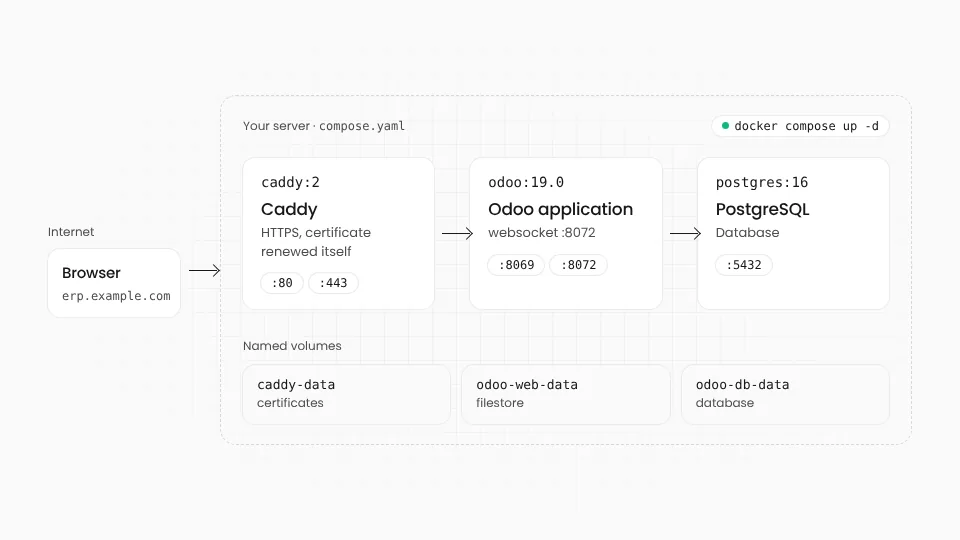
Three containers
odoo for the application, postgres for the database and caddy for HTTPS. Data lives in named volumes.
Seven steps
01
Create the project folder
One folder holds everything. The database password goes in a .env file that Compose reads, never in the files you share.
Terminal mkdir -p odoo/config odoo/addons && cd odoo echo "DB_PASSWORD=$(openssl rand -hex 24)" > .env02
Write compose.yaml
Odoo publishes no port: only Caddy listens on 80 and 443. Named volumes keep the database and the filestore when containers are replaced.
compose.yaml services: db: image: postgres:16 restart: unless-stopped environment: POSTGRES_DB: postgres POSTGRES_USER: odoo POSTGRES_PASSWORD: ${DB_PASSWORD} volumes: - db-data:/var/lib/postgresql/data odoo: image: odoo:19.0 restart: unless-stopped depends_on: [db] environment: HOST: db USER: odoo PASSWORD: ${DB_PASSWORD} volumes: - odoo-data:/var/lib/odoo - ./config:/etc/odoo - ./addons:/mnt/extra-addons caddy: image: caddy:2 restart: unless-stopped ports: ["80:80", "443:443"] volumes: - ./Caddyfile:/etc/caddy/Caddyfile - caddy-data:/data volumes: db-data: { name: odoo-db-data } odoo-data: { name: odoo-web-data } caddy-data:03
Configure Odoo
Workers turn on multiprocessing and the websocket port. list_db and the master password close the database manager; proxy_mode trusts Caddy's headers.
config/odoo.conf [options] addons_path = /mnt/extra-addons data_dir = /var/lib/odoo admin_passwd = a-long-random-master-password list_db = False dbfilter = ^mycompany$ proxy_mode = True workers = 3 max_cron_threads = 1 limit_memory_soft = 1073741824 limit_memory_hard = 1610612736 limit_time_cpu = 600 limit_time_real = 120004
Add HTTPS with Caddy
Caddy gets and renews the certificate itself. The websocket path goes to port 8072, everything else to 8069.
Caddyfile erp.example.com { encode gzip reverse_proxy /websocket* odoo:8072 reverse_proxy odoo:8069 }05
Start and create the database
Create the database once from the command line, since the database manager is closed. Then sign in at your domain.
Terminal docker compose up -d docker compose run --rm odoo odoo -d mycompany -i base --stop-after-init # then open https://erp.example.com06
Back up the database and the filestore
Both are needed for a restore. Run this every day from cron, copy the files off the server, and test a restore now and then.
Terminal # database docker compose exec -T db pg_dump -U odoo -Fc mycompany > mycompany-$(date +%F).dump # filestore (attachments) docker run --rm -v odoo-web-data:/data -v "$PWD":/backup alpine \ tar czf /backup/filestore-$(date +%F).tgz -C /data .07
Update
Pulling the image brings Odoo's latest fixes for the same version. Your own modules need an update run after you change them.
Terminal docker compose pull odoo docker compose up -d # after changing one of your own modules docker compose run --rm odoo odoo -d mycompany -u my_module --stop-after-init
Written for Odoo 19 Community and Docker Compose v2. Replace erp.example.com, mycompany and the master password with your own, and point the domain to the server before the first start.
Common mistakes
What goes wrong with Odoo on Docker
- Port 8069 open to the internetPublishing Odoo's port skips HTTPS and the proxy. Keep it inside the Docker network, as above.
- Chat and notifications stop workingWith workers on, live updates use the websocket on port 8072. The proxy has to send /websocket there.
- Permission denied on a bind mountThe image runs as the odoo user, not root. Use named volumes, or give that user ownership of the folder.
- The database manager left openWithout list_db = False and a strong admin_passwd, anyone can download or drop your database from the login page.
- Backups on the same serverA volume backup that stays on the disk dies with the disk. Copy every backup somewhere else.
- Floating image tagsPin a major version such as odoo:19.0. A new major needs a database upgrade, not just a new image.
Or skip the YAML
Odoo in containers, without writing the files
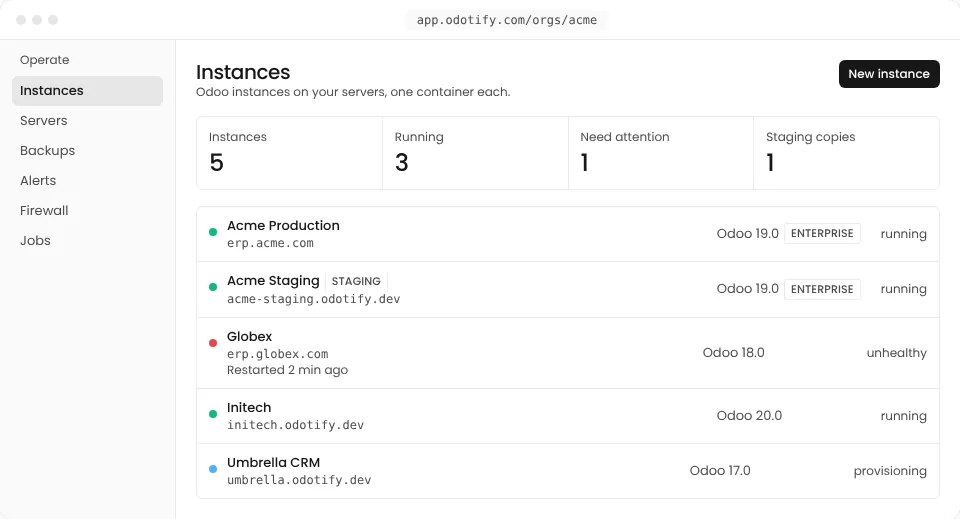
Odotify runs each Odoo instance in its own container on your server, with HTTPS, a firewall, off-server backups, restore drills, monitoring and updates already set up. You keep root access.
Odoo Docker questions
01Is Docker a good way to run Odoo in production?
Yes, when the basics are in place: HTTPS in front, workers configured, the database manager locked, and backups copied off the server. Docker makes the setup repeatable and easy to move, which is why many hosts, Odotify included, run Odoo in containers.
02Which Odoo Docker image should I use?
The official odoo image on Docker Hub, maintained by Odoo, with one tag per version such as 17.0, 18.0 and 19.0. It contains Odoo Community.
03Can I run Odoo Enterprise in Docker?
Yes, with an Enterprise subscription on Odoo's Custom plan. Put the Enterprise addons from your subscription in a mounted folder and list it first in addons_path, or build your own image on top of the official one.
04Where do my custom modules go?
In the addons folder next to compose.yaml, which the container sees as /mnt/extra-addons. Restart Odoo, update the apps list, and install the module.
05How do I upgrade to a new major version of Odoo?
Changing the image tag does not migrate the database. Community databases are upgraded with OpenUpgrade, Enterprise databases with Odoo's upgrade service. Always try it on a copy first.
The containers, without the chores.
Connect any Linux server you reach over SSH and Odotify runs Odoo on it in containers, secured, backed up and updated. Start free on one instance.