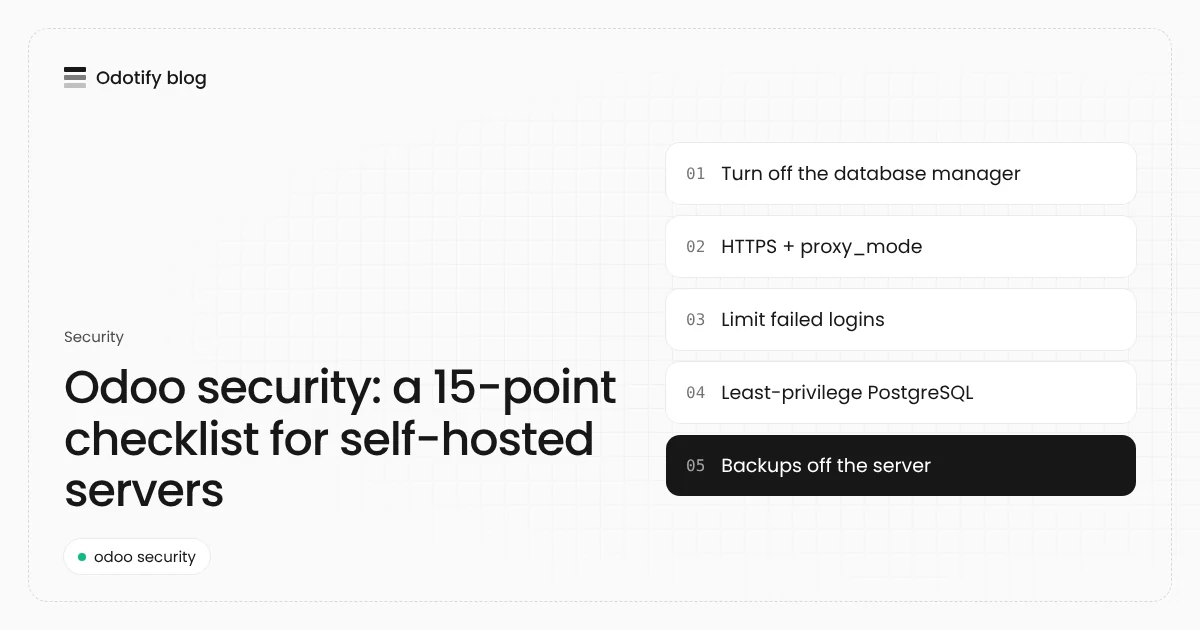
Odoo security: a 15-point checklist for self-hosted servers
Odotify team · Published · 7 min read
Odoo holds your invoices, customers, salaries and stock. If you run it on your own server, its security is your job, not Odoo S.A.'s. This guide is for the person who installed Odoo (or inherited a server someone else installed) and wants to know what is already safe, what is not, and exactly which settings to check. Every recommendation below comes from Odoo's own deployment guide and security page, read on 20 November 2026.
Is Odoo secure?
Yes, the software is built carefully, but a default self-hosted install is not locked down. Odoo's security page describes protections in the code that apply to every installation:
- SQL injection: queries are generated by the ORM and parameters are escaped, so developers do not normally write SQL by hand.
- Cross-site scripting (XSS): expressions rendered into views and pages are escaped by default; a developer has to mark content as safe on purpose.
- CSRF: controllers refuse protected POST requests without a security token.
- Passwords: stored with PBKDF2 + SHA-512 and key stretching. OIDC/OAuth can be used so Odoo stores no password at all.
- Access control is enforced on the server, not in the interface, so guessing a record ID in a URL does not bypass permissions.
On Odoo Online (Odoo's own cloud), Odoo also runs the infrastructure: dedicated databases per customer, AES-256 encryption at rest, HTTPS by default, 14 backups kept for at least 3 months and replicated to 3 data centres, and participation in the CSA STAR programme.
On your own server, none of the infrastructure part exists until you set it up. The database manager is open, there is no HTTPS, and nothing stops a script from trying passwords all night. That is what the checklist below fixes.
What are the biggest security risks for a self-hosted Odoo?
In practice, three things cause most incidents:
- The database manager left open.
/web/database/managerlets anyone who knows the master password create, duplicate, back up, restore or delete databases. Odoo's guide calls it a development tool that "may even expose dangerous features to attackers" and strongly recommends disabling it on any internet-facing system. - Weak or default logins.
admin/admin, demo data with its default users, or a test database with real data copied into it. - No updates and no backups. Unpatched builds stay vulnerable, and a server without off-site backups turns any incident into data loss.
The 15-point Odoo security checklist
Work through these in order. The first five close the doors attackers try first.
1. Set a strong master password
admin_passwd in odoo.conf protects every database management screen. Use a long random value, for example openssl rand -hex 24, and store it in a password manager.
2. Turn off the database manager and database list
Once each hostname serves a single database, set:
[options]
list_db = False
dbfilter = ^mycompany$
db_name = mycompany
list_db = False hides the database selector and blocks the management screens entirely. dbfilter makes sure a hostname only ever opens its own database.
3. Never install demo data on a public server
Demo databases ship with known logins. Odoo's guide warns that this applies to staging and test systems too.
4. Use unique admin logins, and not "admin"
Give each administrator a personal account with a strong password and two-factor authentication (Odoo has built-in two-factor authentication with an authenticator app, under My Preferences, Security tab). Do not use administrator accounts for day-to-day work.
5. Put Odoo behind HTTPS with proxy_mode
Odoo itself should only listen on 127.0.0.1; nginx, Caddy or another proxy terminates TLS in front of it. Then set proxy_mode = True so Odoo trusts the forwarded headers. Odoo's guide adds a Strict-Transport-Security header so browsers refuse plain HTTP for a year:
add_header Strict-Transport-Security "max-age=31536000; includeSubDomains";Our nginx and HTTPS setup on Ubuntu shows the full server block, including the websocket route on port 8072.
6. Limit failed logins
Odoo writes every login attempt to its log with the source IP:
INFO db_name odoo.addons.base.res.res_users: Login failed for db:db_name login:admin from 127.0.0.1fail2ban can read that line and block the address. This is the filter and jail from Odoo's guide, which bans an IP for 15 minutes after 10 failures in 1 minute:
# /etc/fail2ban/filter.d/odoo-login.conf
[Definition]
failregex = ^ \d+ INFO \S+ \S+ Login failed for db:\S+ login:\S+ from <HOST>
ignoreregex =

# /etc/fail2ban/jail.d/odoo-login.conf
[odoo-login]
enabled = true
port = http,https
bantime = 900
maxretry = 10
findtime = 60
logpath = /var/log/odoo.log
Set logpath to wherever your Odoo writes its log (the logfile option in odoo.conf).
Rate limiting on the proxy (for example nginx limit_req on /web/login) adds a second layer.
7. Give PostgreSQL a non-superuser role
The db_user Odoo connects with must not be a PostgreSQL superuser, and the databases should be owned by a different role. A bug or a malicious module then cannot reach the rest of the cluster.
8. Keep PostgreSQL off the internet
PostgreSQL listens on port 5432. If Odoo and PostgreSQL share a server, bind it to localhost. If they do not, allow 5432 only from the Odoo server's IP, and consider db_sslmode = require (supported since Odoo 11) to encrypt the connection.
9. Lock down SSH
Disable password logins and use keys only. Odoo's guide also suggests restricting SSH to trusted IPs or a VPN and running fail2ban on SSH.
10. Open only ports 22, 80 and 443
Odoo's 8069 and 8072 should never be reachable from outside: the proxy talks to them on localhost. A host firewall (ufw, or your cloud's security group) should default to deny.
11. Run in multi-process mode with limits
workers, limit_memory_soft, limit_memory_hard, limit_time_cpu and limit_time_real stop one runaway request from taking the whole server down. See how many Odoo workers you need.
12. Install updates every month
Odoo publishes fixes in its stable branches continuously. Pull the latest build of your version (or update the apt package) on a schedule, after a backup.
13. Review third-party modules before installing them
A module runs with full server rights. Prefer modules from the Odoo Apps store with a known maintainer or from the Odoo Community Association, and read what they do before installing them on production.
14. Separate staging from production
Odoo recommends hosting public test and staging instances on different machines than production, with the same precautions. A staging copy of production data is still production data.
15. Back up daily, off the server
Back up both the PostgreSQL database and the filestore every day, and copy them to storage the Odoo server itself cannot delete. Then test a restore. Our Odoo backup guide has the commands.
How do I secure Odoo's database manager?
Set a strong admin_passwd, then list_db = False with a dbfilter per hostname. If you must keep the manager for a while, block /web/database at the proxy except from your own IP. Odoo's documentation is clear that the manager "is not designed for use in production".
Does Odoo have two-factor authentication?
Yes. Each user can turn on two-factor authentication with an authenticator app (Google Authenticator, Microsoft Authenticator, Bitwarden and others) from My Preferences, Security tab. Odoo's security page also mentions that database administrators can configure rate limiting and cooldown periods for repeated login attempts.
How Odotify handles Odoo security
Odotify applies most of this checklist for you on your own server. Every instance's odoo.conf is written with list_db = False, a random 48-character admin_passwd, a dbfilter for its single database, proxy_mode = True, Odoo listening on 127.0.0.1 only, and memory and time limits. HTTPS certificates are issued and renewed automatically.
On paid plans, a web application firewall runs in nginx in front of each instance. By default it blocks common scanner paths and attack tools, limits logins to 20 per minute per address, and bans an address for 1 hour after 30 blocked requests in 10 minutes. Every blocked request is visible in a Firewall Logs page. Backups go to off-server storage and monthly restore drills check that they work. See pricing for what each plan includes, or the self-hosted Odoo guide if you prefer to do it all by hand.
FAQ
Is Odoo Community less secure than Enterprise?
No. Security fixes go into the shared code, and the protections in the framework (ORM, escaping, CSRF, password hashing) are the same in both editions. The difference is who runs the server: on a self-hosted install, Community or Enterprise, the configuration in this checklist is up to you.
What port does Odoo use?
Odoo serves HTTP on port 8069 and, in multi-process mode, live chat and websockets on 8072. Neither should be exposed to the internet: put a reverse proxy with HTTPS on ports 80 and 443 in front of them.
Is Odoo GDPR compliant?
Odoo provides tools (access rights, record rules, data export and deletion) but compliance depends on how you host and use it: where the server is, who can access it, how long you keep data and whether your backups are encrypted and access-controlled.
How do I know if someone is trying to break into my Odoo?
Search the Odoo log for "Login failed". Many failures from one IP within minutes means a brute-force attempt; fail2ban or a firewall with auto-bans should block it automatically.
Should I put Cloudflare in front of Odoo?
You can. Odoo's guide notes that if you use a WAF or DDoS protection service, you should firewall the server so it only accepts web traffic from that service's IP ranges; otherwise attackers can reach the server directly.
Sources
- Odoo documentation, System configuration and Security (19.0): https://raw.githubusercontent.com/odoo/documentation/19.0/content/administration/on_premise/deploy.rst
- Odoo Security page: https://www.odoo.com/security
- Odoo documentation, Two-factor authentication: https://raw.githubusercontent.com/odoo/documentation/19.0/content/applications/general/users/2fa.rst

Odotify team
Odotify hosts Odoo on servers its customers own. This article was researched against live search results and the Odotify codebase.