Odoo staging environment: how to set one up and use it safely
Odotify team · Published · 8 min read
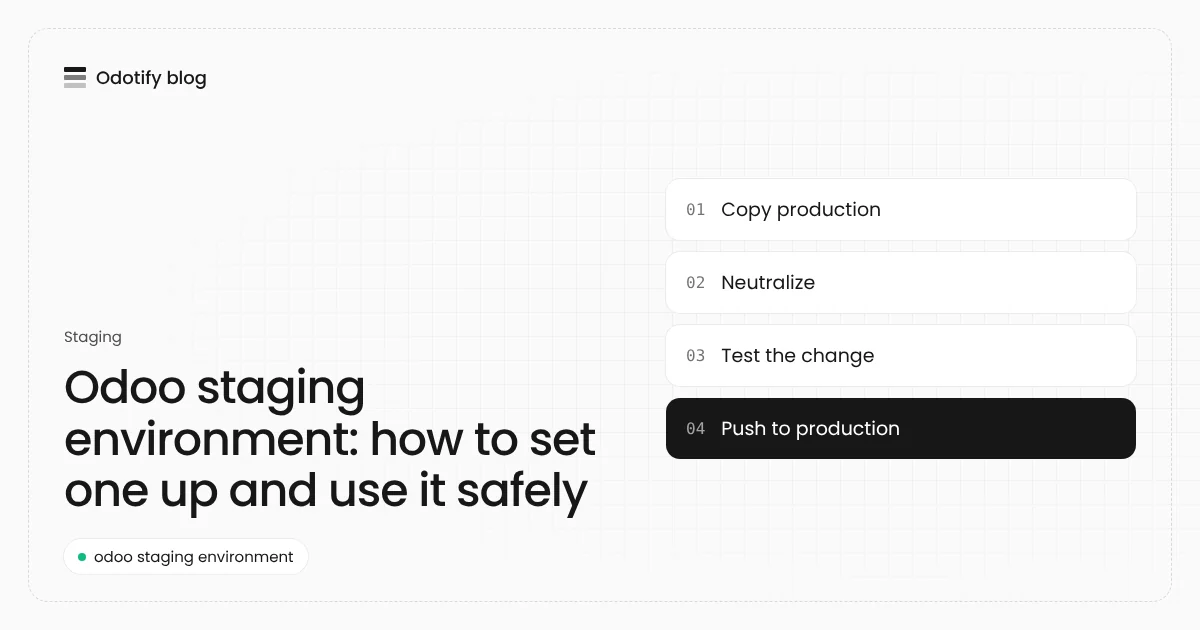
Every Odoo team eventually breaks production with a change that "worked on my machine". A staging environment is the fix: a copy of production, with real data, where nothing you do reaches customers. This guide explains what an Odoo staging environment is, exactly what Odoo switches off in it, how to set one up on Odoo.sh and on your own server, and how to move tested work back to production without losing data. Facts come from Odoo's 19.0 documentation, read on 22 November 2026.
What is an Odoo staging environment?
An Odoo staging environment is a neutralized duplicate of your production database, running the code you want to test, so you can try changes on real data without affecting real customers.
It sits between two other kinds of database:
| Environment | Data | Purpose | Lifetime |
|---|---|---|---|
| Development | Fresh database with demo data | Write code, run unit tests | Short; Odoo.sh may garbage-collect them after about 3 days |
| Staging | Neutralized copy of production | Test changes on real data, train users, rehearse upgrades | Weeks; Odoo.sh deletes staging databases after one month |
| Production | Live data | Run the business | Permanent |
The key word is neutralized. A plain copy of production would still send invoices by email, charge cards and run scheduled jobs. A neutralized copy does none of that.
What does neutralizing an Odoo database turn off?
Neutralizing runs each installed module's neutralize.sql script, which switches off everything that talks to the outside world. Odoo's documentation lists these (as a "non-exhaustive" list):
- all planned (scheduled) actions, such as subscription invoicing and mass mailing;
- outgoing emails;
- bank synchronization;
- payment providers (put in test mode);
- delivery methods and shipping connectors (test mode);
- IAP (In-App Purchase) tokens;
- website visibility, so search engines do not index the copy.
A red banner at the top of every screen shows that you are on a neutralized database. If you ever see production data without that banner on a test server, stop and check before you click anything.
Two side effects to plan for. First, scheduled actions are off, so a test that depends on a cron job (for example recurring invoices) needs you to run the action by hand or re-enable it on staging. Second, emails are not sent: on Odoo.sh they go to a mail catcher you can read in the project; on your own server they simply do not leave.
Why do you need a staging environment for Odoo?
Because Odoo changes touch data, and data changes are hard to undo. The common reasons to test on staging first:
- Custom modules and updates. A module update can migrate fields and rewrite records. Staging shows what happens on your real data volume.
- Third-party apps. An app from the Odoo Apps store may conflict with your modules or override the same view.
- Configuration. New taxes, a changed chart of accounts, a different stock route: try them on a copy first.
- Version upgrades. Odoo's upgrade documentation describes testing the upgraded database before switching, and supports each major version for three years, so you will upgrade at least every few years. Our Odoo upgrade guide covers that process.
- Training. New staff can practise on realistic data without creating real invoices.
How do you set up a staging environment on Odoo.sh?
On Odoo.sh, staging is a branch stage. Drag a branch under Staging in the project, and Odoo.sh creates a neutralized duplicate of the production database for it, built with that branch's code.
What Odoo.sh documents about staging branches:
- Outgoing emails go to a mail catcher with its own viewer in the project.
- Scheduled actions are disabled; Odoo.sh triggers them less often when nobody uses the database.
- Unit tests do not run on staging (they rely on demo data, which staging does not have).
- Staging databases are not backed up automatically, though you can make manual backups.
- Staging databases are deleted after one month; rebuild the branch to get a fresh one.
When the change is ready, drag the staging branch onto the production branch to merge it. Note what Odoo's documentation says next: merging only merges the source code. Changes you made inside the staging database (settings, edited views, records) are not passed to production. Either write them as XML data files in a module and bump its version, or repeat them by hand in production.
Odoo.sh bills staging as part of the project. For the prices per worker, storage and staging environment, see our Odoo.sh pricing breakdown.
How do you create an Odoo staging environment on your own server?
On a self-hosted Odoo (Community or Enterprise), you build staging from the same three pieces Odoo.sh uses: a copy of the database, a copy of the filestore, and the neutralize step.
You have three ways to make the copy, all from Odoo's documentation:
- Database manager. Open
/web/database/manager, choose Duplicate, and tick the neutralize box. - Command line, duplicate.
odoo-bin db duplicate --neutralize <source> <target>copies the database and its filestore, then neutralizes it. - Command line, after a restore. Restore a backup into a new database with
odoo-bin db load --neutralize, or neutralize an existing copy withodoo-bin neutralize -d <database>. Add--stdoutto print the SQL instead of applying it.
Then keep staging apart from production:
- Separate hostname. Serve staging on its own domain, such as
staging.example.com, and setdbfilterso each hostname only sees its own database. Odoo's deployment guide also recommendslist_db = Falseonce each hostname maps to one database. - Separate Odoo process, ideally separate server. A heavy test (a big import, an upgrade) should not slow production down.
- Same versions. Same Odoo major version, same Python packages, same PostgreSQL major version as production, or your test proves little.
- Enterprise licence. Odoo's on-premise documentation notes that only one database can be linked per subscription code and points to a neutralized duplicate when you need a test or development database. Do not register the copy as a second production database.
Steps to refresh a self-hosted staging copy
- Take a fresh backup of production (database dump and filestore).
- Stop the staging Odoo service.
- Drop the old staging database and restore the backup under the staging name.
- Run
odoo-bin neutralize -d <staging_db>(or restore with--neutralize). - Deploy the branch or modules you want to test, then update them with
-u <module>. - Start staging and check the red banner before you share the link.
How do you move changes from staging to production?
Move code, modules and apps from staging to production; never copy the staging database over production. Production keeps receiving orders, invoices and messages while staging works on an old copy, so overwriting it loses real data.
A safe release looks like this:
- Freeze what you tested: a Git commit, a module version, a list of apps to install.
- Back up production.
- Deploy the same commit to production and update the changed modules (
-u), or install the new apps (-i). - Repeat any configuration you changed by hand on staging, or better, ship it as XML data in a module.
- Check the logs and the key flows (a sale, an invoice, a delivery) before telling users.
If the update fails, restore the backup taken in step 2.
Common Odoo staging mistakes
- Testing on an old copy. A staging database from two months ago may not have the records that trigger your bug. Refresh it before each important test.
- Forgetting the filestore. A database copy without its filestore shows broken images and attachments. Copy both.
- Re-enabling email on staging. If you need to test outgoing mail, point staging at a test mail server, not your real one.
- Assuming settings travel with the merge. On Odoo.sh and elsewhere, only code moves. Data and settings stay where they were made.
- Different versions. A staging server on another PostgreSQL or Python version can hide or invent problems.
Staging with Odotify
Odotify is our product, so take this section as one option. It runs Odoo 17 to 20 on your own server and makes staging a button: a staging copy is restored from a fresh backup of production and neutralized (outgoing mail, scheduled actions and payment providers off) before it starts. You can refresh it with production's latest data at any time. When the change is ready, Push to production shows the differences (Git commit, uploaded addons, apps to install), takes a backup of production, and ships code and apps in one job. Data never moves. Staging copies come with the Starter plan (3) and are unlimited on Pro; see pricing and how it compares with Odoo.sh on our Odoo.sh alternative page.
FAQ
What is staging in Odoo?
Staging in Odoo is a neutralized copy of the production database used to test code, modules, settings and upgrades on real data. Emails, scheduled actions, payments and other outside connections are switched off, and a red banner marks the database as a test.
Does a staging database send emails?
No. Neutralizing disables outgoing emails. On Odoo.sh they are captured by a mail catcher you can read in the project; on your own server they are not sent unless you re-enable a mail server on the copy.
How long does an Odoo.sh staging database last?
Odoo.sh deletes staging databases after one month. Rebuild the staging branch to get a fresh copy of production. Staging databases are not backed up automatically, but you can back them up by hand.
Do changes in a staging database go to production when I merge?
No. Merging a staging branch into production merges only the source code. Configuration and records changed inside the staging database stay there; repeat them in production or write them as XML data in a module.
How do I neutralize an Odoo database from the command line?
Run odoo-bin --addons-path <paths> neutralize -d <database>. You can also duplicate with odoo-bin db duplicate --neutralize <source> <target>, or tick the neutralize box when duplicating in the database manager.
Sources
- Odoo 19.0 documentation, Odoo.sh branches (staging, development, merging): https://raw.githubusercontent.com/odoo/documentation/19.0/content/administration/odoo_sh/getting_started/branches.rst
- Odoo 19.0 documentation, neutralized database: https://raw.githubusercontent.com/odoo/documentation/19.0/content/administration/neutralized_database.rst
- Odoo 19.0 documentation, command-line interface (
db duplicate,db load,neutralize): https://raw.githubusercontent.com/odoo/documentation/19.0/content/developer/reference/cli.rst - Odoo 19.0 documentation, on-premise (duplicate a database, one database per subscription): https://raw.githubusercontent.com/odoo/documentation/19.0/content/administration/on_premise.rst
- Odoo 19.0 documentation, system configuration (
dbfilter,list_db): https://raw.githubusercontent.com/odoo/documentation/19.0/content/administration/on_premise/deploy.rst - Odoo 19.0 documentation, upgrade: https://raw.githubusercontent.com/odoo/documentation/19.0/content/administration/upgrade.rst

Odotify team
Odotify hosts Odoo on servers its customers own. This article was researched against live search results and the Odotify codebase.