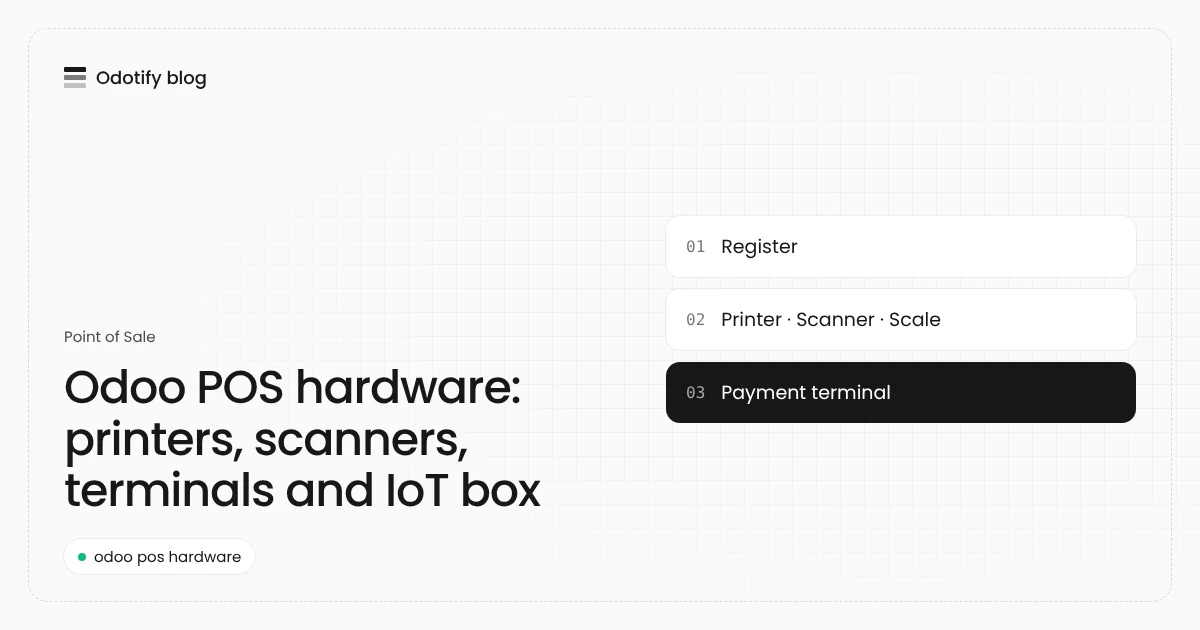
Odoo POS hardware: printers, scanners, terminals and IoT box
Odotify team · Published · 7 min read
Choosing hardware for Odoo Point of Sale is mostly about one question: can the device talk to the browser directly, or does it need an IoT box in between? This guide lists what Odoo 20 supports for each kind of device, which items need an IoT gateway (and therefore Odoo Enterprise), and what the server behind your POS needs. All facts come from Odoo's 20.0 documentation, Odoo's POS hardware page and the Odoo 20.0 source code, checked on 23 November 2026.
What hardware do you need for Odoo POS?
A device with a modern browser is enough to start. Odoo's hardware page says the POS "runs smoothly on desktop, laptop, tablet or smartphone", including industrial touchscreens such as EloPOS, and recommends a stable internet connection and enough processing power. A typical shop or restaurant adds:
| Device | Connects how | IoT box needed? |
|---|---|---|
| Register (PC, tablet, touchscreen, phone) | Browser | No |
| Epson ePOS receipt printer (Wi-Fi or Ethernet) | Network, direct from browser | No |
| USB ePOS or ESC/POS receipt printer | USB or network through the gateway | Yes |
| Cash drawer | Plugged into the receipt printer | Same as the printer |
| Barcode scanner | USB in keyboard (HID) mode, or Bluetooth paired with a tablet | No |
| Payment terminal | Provider's cloud or local network | No, except Worldline and Axepta BNP Paribas |
| Customer display | Second screen over HDMI or USB-C, or a QR code on any device | No (IoT box optional) |
| Scale | USB direct, or through the gateway | Optional |
| Label printer (Zebra ZPL) | Through the gateway | Yes, for all label printers |
| Electronic shelf labels | Pricer platform | No |
Which receipt printers work with Odoo POS?
Epson network printers that speak the ePOS protocol, with the TM-m30 i, ii or iii recommended. Odoo's documentation says Epson printers are "strongly recommended" and splits printers into three groups:
- Network ePOS printers without IoT, such as the TM-m30 iii (model 112 or 152). The printer must work in HTTP mode and, when you use Local Network Access, have a static IP address set on the router.
- ePOS printers on USB, which need an IoT connection.
- ESC/POS printers, which need an IoT connection on USB or network.
Bluetooth printers are not compatible. For Android all-in-one terminals, Odoo supports iMin Swan 2 and Falcon 2 devices with the POS iMin module; they print receipts without an IoT box but should not be used for kitchen preparation tickets.
Local Network Access replaces self-signed certificates
Browsers block an HTTPS page from calling a printer on the local network. Odoo 20 solves this with Local Network Access (LNA), a Chromium feature from version 142 in Chrome, Edge, Brave, Vivaldi and Opera. The browser asks once for permission, and the POS then talks to the ePOS printer directly without the self-signed certificate older setups needed. Enable Use Local Network Access on the printer form, and on Epson printers turn off Secure Printing and SSL/TLS in the printer's own web settings first, as Odoo's guide describes.
When do you need an Odoo IoT box?
When a device cannot be reached by IP from the browser. Odoo's documentation says printers, scales, payment terminals, customer displays and the Belgian fiscal blackbox that cannot connect directly use an IoT gateway, which also handles their SSL certificates. There are two kinds:
- the IoT Box, a plug-and-play micro-computer with the IoT software installed (Odoo's hardware page says it is based on a Raspberry Pi 4 and has two HDMI ports for extra screens);
- the Windows virtual IoT, a program for a Windows PC, with no extra hardware.
Odoo recommends the physical box for reliability and Ethernet instead of Wi-Fi. One gateway can serve several points of sale since Odoo 13, with exceptions such as Ingenico terminals.
The IoT app is an Enterprise feature. In the Odoo 20.0 Community source the iot_drivers module (the software that runs on the box) is open source, but the pos_iot module that links a POS to a gateway is not in the Community repository. If you run Community, choose hardware from the "no IoT" column above.
Which payment terminals work with Odoo POS?
Thirteen providers are integrated in Odoo 20: Adyen, Axepta BNP Paribas, Dpopay, Mercado Pago, Mollie, Pine Labs, QFPay, Razorpay, SIX, Stripe, Tyro, Viva.com and Worldline. You enable the terminal in the POS settings, create a payment method with a Bank journal and the Terminal integration, then follow the provider's setup. During checkout the cashier picks the terminal's payment method and the customer pays on the terminal; if the connection drops, Odoo cancels the transaction.
Several integrations ship in Community: the Odoo 20.0 source has pos_adyen, pos_stripe, pos_mollie, pos_viva_com, pos_mercado_pago, pos_razorpay, pos_qfpay, pos_pine_labs and pos_dpopay. SIX and Tyro are not in the Community repository. Worldline and Axepta BNP Paribas terminals need their own IoT gateway. Odoo's hardware page also lists the combinations allowed on one POS, such as Adyen with SIX or Ingenico.
Scales, customer displays and shelf labels
- Scales. Odoo recommends the Mettler Toledo Ariva S on protocol 8217. Connect it by USB to the register or through an IoT system. In EU countries a scale used as an integrated device must be certified.
- Customer display. A second screen on HDMI or USB-C, a screen on the IoT box, or any device that scans a QR code. Both screens must be at least 6 inches diagonal. It shows the cart, prices, taxes, discounts and change due.
- Electronic shelf labels. Odoo integrates with Pricer: you set up stores, transceivers and a
NORMALtemplate on Pricer's side, and Odoo pushes product name, price and barcode. - RFID readers let staff log in to the POS with a badge, according to Odoo's hardware page.
Does Odoo POS work offline?
Yes, for selling. Odoo's hardware page says the POS keeps processing sales when the internet connection drops and syncs them once it is back. Printing keeps working as long as the register and the printer are on the same local network. Card payments through a cloud terminal need the internet, so plan a fallback such as cash.
Steps to set up Odoo POS hardware
- List your counters and what each needs: register, receipt printer, kitchen printer, terminal, scale, display.
- Check your edition. On Community, pick network ePOS printers and a terminal with a Community module; on Enterprise, an IoT box opens up USB, ESC/POS and label printers.
- Give each network printer a static IP on the router and connect it by Ethernet if you can.
- In Point of Sale > Configuration > Settings > Connected Devices, enable Receipt Printers, create the printer with its IP, purpose (Receipt or Preparation) and paper size, and tick Use Local Network Access.
- Allow local network access in the browser when it asks.
- Enable the payment terminal under Payment Terminals, create its payment method and complete the provider setup.
- If you use an IoT box, install the IoT app, connect the box to the database and set the Associated POS, then add each device.
- Open a session, ring up a test sale, print, pay on the terminal and close the session to check the cash drawer and totals.
What server does Odoo POS need?
The POS hardware talks to the browser, and the browser talks to your Odoo server. If you host Odoo yourself, the server has to answer fast during opening hours, keep HTTPS valid (browsers and terminals refuse broken certificates) and route websockets for live updates between registers and the kitchen. Sizing follows Odoo's usual rule of about 6 concurrent users per worker; see Odoo server requirements and the HTTPS setup in our Odoo Nginx guide.
Odotify is our product: it runs Odoo 17 to 20, Community or Enterprise, on your own server with HTTPS, scheduled backups, monitoring and a staging copy to test POS changes before a busy day. Plans start at $0 a month; see pricing and self-hosted Odoo.
FAQ
What devices can run Odoo POS?
Any device with a modern browser such as Chrome, Firefox, Safari or Edge: desktops, laptops, tablets, smartphones and industrial touchscreens. Odoo also supports iMin Android POS devices with a built-in printer.
Do I need an IoT box for Odoo POS?
Not for an Epson ePOS network printer, most payment terminals or a second screen. You need one for USB or ESC/POS printers, all label printers, Worldline and Axepta BNP Paribas terminals and the Belgian fiscal blackbox. The IoT integration is part of Odoo Enterprise.
Which printer is best for Odoo POS?
Odoo recommends the Epson TM-m30 (i, ii or iii) on Wi-Fi or Ethernet. It connects directly from the browser without an IoT box. Bluetooth printers do not work.
Which payment terminals does Odoo support?
Adyen, Axepta BNP Paribas, Dpopay, Mercado Pago, Mollie, Pine Labs, QFPay, Razorpay, SIX, Stripe, Tyro, Viva.com and Worldline, depending on your country and provider.
Does Odoo POS work without internet?
Yes. Sales continue offline and sync when the connection returns, and printing works on the local network. Card payments through an online terminal need a connection.
Sources
- Odoo 20.0 documentation, POS hardware and network: https://raw.githubusercontent.com/odoo/documentation/20.0/content/applications/sales/point_of_sale/hardware_network.rst
- Odoo 20.0 documentation, receipt printers: https://raw.githubusercontent.com/odoo/documentation/20.0/content/applications/sales/point_of_sale/hardware_network/receipt_printers.rst
- Odoo 20.0 documentation, Local Network Access: https://raw.githubusercontent.com/odoo/documentation/20.0/content/applications/sales/point_of_sale/hardware_network/pos_lna.rst
- Odoo 20.0 documentation, IoT connection for POS: https://raw.githubusercontent.com/odoo/documentation/20.0/content/applications/sales/point_of_sale/hardware_network/pos_iot.rst
- Odoo 20.0 documentation, Internet of Things: https://raw.githubusercontent.com/odoo/documentation/20.0/content/applications/general/iot.rst
- Odoo 20.0 documentation, payment terminals: https://raw.githubusercontent.com/odoo/documentation/20.0/content/applications/sales/point_of_sale/payment_methods/terminals.rst
- Odoo 20.0 documentation, scale, customer display and electronic shelf labels: https://raw.githubusercontent.com/odoo/documentation/20.0/content/applications/sales/point_of_sale/hardware_network/scale.rst, https://raw.githubusercontent.com/odoo/documentation/20.0/content/applications/sales/point_of_sale/hardware_network/customer_display.rst, https://raw.githubusercontent.com/odoo/documentation/20.0/content/applications/sales/point_of_sale/hardware_network/electronic_labels.rst
- Odoo 20.0 documentation, barcode scanner setup (USB keyboard mode, Bluetooth): https://raw.githubusercontent.com/odoo/documentation/20.0/content/applications/inventory_and_mrp/barcode/setup/hardware.rst
- Odoo, Point of Sale hardware page (devices, offline mode, IoT box FAQ): https://www.odoo.com/app/point-of-sale-hardware
- Odoo 20.0 Community source code (POS and payment modules): https://github.com/odoo/odoo/tree/20.0/addons

Odotify team
Odotify hosts Odoo on servers its customers own. This article was researched against live search results and the Odotify codebase.