Odoo IoT box: what it does, cost and setup in Odoo 20
Odotify team · Published · 9 min read
This guide is for anyone deciding whether they need an Odoo IoT box: shop owners wiring a point of sale, production managers adding scales and calipers to quality checks, and admins who self-host Odoo and want to know what the box needs from their server. By the end you will know what the box does, what it costs, which devices need it, how to connect it to Odoo 20, and how it compares with the Windows virtual IoT. Facts come from Odoo's 20.0 documentation, Odoo's IoT product pages and the Odoo 20.0 source code, all checked on 24 November 2026.
What is the Odoo IoT box?
A plug-and-play micro-computer with Odoo's IoT software pre-installed, which connects physical devices on your local network to your Odoo database. Odoo's 20.0 documentation calls it an IoT gateway and lists two kinds:
- the IoT Box, the physical device;
- the Windows virtual IoT, the same IoT program installed on a Windows 10 or 11 computer.
Odoo's IoT FAQ says the current box is based on a Raspberry Pi 4 and has two HDMI ports, so it can drive two screens next to the cashier screen, for example a customer display and a promotion display. You can plug a USB hub into it. Devices connect over USB, Ethernet, Wi-Fi, Bluetooth or HDMI, depending on the device.
The box does not run your Odoo database. Odoo runs on Odoo Online, Odoo.sh or your own server; the box sits in the shop or on the factory floor and relays between the devices and the browser or server.
Which devices need an IoT box?
Devices that the browser cannot reach directly by IP. Odoo's 20.0 device documentation covers printers, scales, screens, measurement tools, cameras and footswitches, plus two payment terminal families:
| Device | Typical use | Needs a gateway? |
|---|---|---|
| USB or ESC/POS receipt printer | POS receipts, kitchen tickets | Yes |
| Label printer (Zebra ZPL, such as ZD411 or ZD420) | Product and shipping labels | Yes |
| Epson ePOS printer on Wi-Fi or Ethernet | POS receipts | No, the POS prints to it directly |
| Scale (Mettler Toledo Ariva-S recommended) | POS and Inventory weighing | Optional for POS, yes for some setups |
| Measurement tools (calipers, gauges, Sylvac and others) | Manufacturing quality checks | Yes, IoT Box only |
| USB camera or webcam (Logitech recommended) | Quality check photos | Yes, IoT Box only |
| USB footswitch or keyboard | Hands-free steps on the shop floor | Yes |
| Worldline, Axepta BNP Paribas, SIX terminals | Card payments | Yes, through the gateway |
| Extra screens over HDMI | Customer or promotion display | Optional |
For point of sale specifically, most modern setups can avoid the box: an Epson network printer and a cloud payment terminal such as Adyen or Stripe work without it. Our Odoo POS hardware guide lists which POS devices work with and without a gateway.
Manufacturing is where the box matters most. Odoo's IoT page describes measurements that are linked to the product being processed, photos taken in one click during a quality check, labels printed as serial numbers are created, and a footswitch to move to the next step with free hands. These MRP devices (cameras and measurement tools) only work with the physical box, not the Windows virtual IoT.
How much does the Odoo IoT box cost?
US$30.00 a month per box for the subscription, as listed on Odoo's IoT FAQ on 24 November 2026. The same page says:
- each IoT box subscription currently comes with a box for free, shipping included, as a "special temporary offer";
- a box bought separately costs US$170.35, with the price based on your region;
- when the box is connected to a production database, the US$30 a month subscription is added to your Enterprise contract automatically;
- the box has a one-year warranty: a faulty box can be sent back within a year for a new one;
- an old PoSBox can work as an IoT box after you flash its SD card with the current image.
The 20.0 documentation adds that the subscription is required for production use of IoT gateways and to generate the gateway's HTTPS certificate. It is created automatically when a gateway connects to a database.
Does the IoT box work with Odoo Community?
Not as a supported setup. In the Odoo 20.0 Community source code, the iot_drivers module (the driver software that runs on the box) is open source, but the iot app that pairs a gateway with a database and the pos_iot module that links a POS to it are not in the Community repository. The IoT app, the subscription and the HTTPS certificate all come with Odoo Enterprise.
If you run Community, choose devices that do not need a gateway: an Epson ePOS network printer, a barcode scanner in keyboard mode, a payment terminal with a Community module, and a second screen in the browser. Our comparison of Odoo Community vs Enterprise covers what else differs.
IoT box vs Windows virtual IoT
| IoT Box | Windows virtual IoT | |
|---|---|---|
| Hardware | Raspberry Pi 4 based box from Odoo | Your Windows 10 or 11 PC, laptop or server |
| Install | Pre-installed, plug in and connect | Download from odoo.com/download, install in C:\odoo |
| Cameras and measurement tools | Supported | Not supported |
| Drivers | Odoo's | Windows Plug and Play, sometimes manual drivers |
| Firewall | Nothing to configure on the box | Open ports 8069, 80 and 443 in Windows Defender Firewall |
| Linux or macOS | Not needed | Only inside a Windows VM, which Odoo does not support |
Both need the IoT subscription for production. The Windows option is useful when a store already has a Windows PC at the counter and only needs printers or a scale. Pick the box for manufacturing, for reliability, and for counters without a Windows machine. Odoo's documentation also says multiple gateways can be used at the same time.
How to connect an IoT box to Odoo
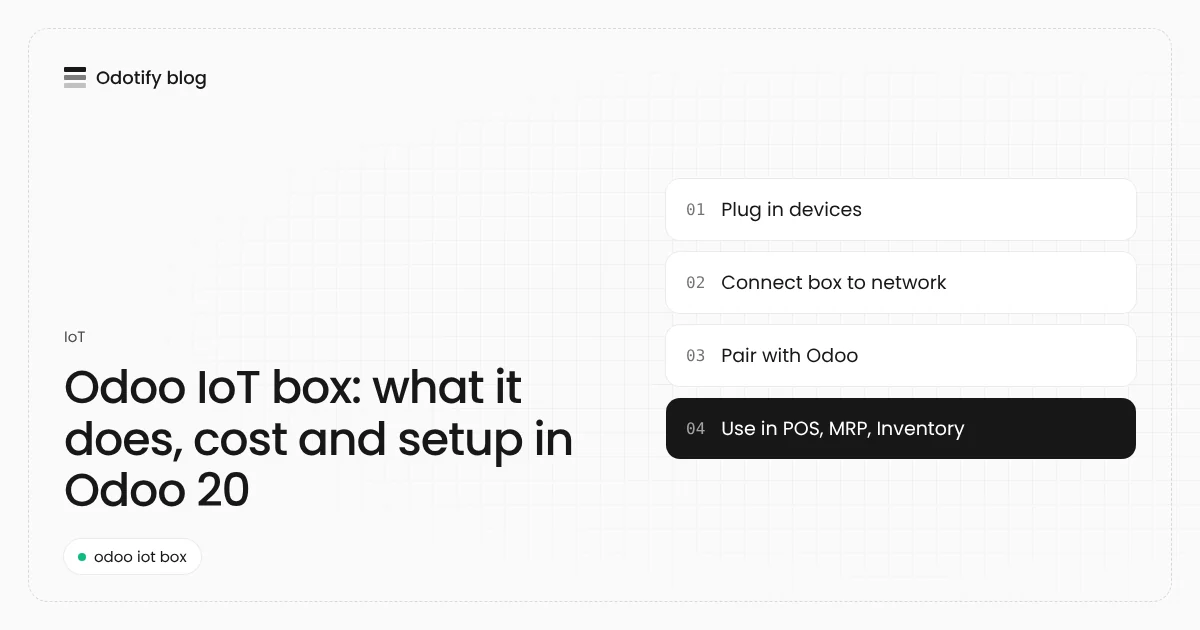
Plug in the devices, put the box on the network, then pair it from the IoT app. The 20.0 documentation describes three ways to pair: automatic discovery, a pairing code, or a connection token.
Network
- Ethernet is the simplest: cable to your router, then power.
- Wi-Fi: with no Ethernet cable, the box opens its own hotspot named
IoTBox-xxxxxxxxxxxx. Join it from a computer, openhttp://10.11.12.1if the page does not appear, click Configure next to Internet Status, pick your Wi-Fi and enter its password.
Odoo recommends putting the box on the same network as its devices, and warns: never make the IoT box reachable from the public internet.
LED status
- Red LED lit: no internet connection.
- Green LED flashing: waiting to be connected to a database.
- Green LED steady: connected, nothing more to do.
Pairing
- Install the IoT app in Odoo.
- Open the IoT app from a computer on the same network as the box and click Connect. The browser scans the network and connects the box it finds.
- If nothing is found, click Use Pairing Code. The code is shown on a screen plugged into the box, printed on a USB printer, or listed on the box's homepage. It is valid for up to 2 hours after the box powers on; restart the box for a new one.
- As a last resort, enable developer mode, choose Offline pairing, copy the token, open the box's homepage and paste it under Odoo database connected > Configure.
Once connected, a box updates for a few minutes, then asks which POS it belongs to if Point of Sale is installed. It requests an HTTPS certificate and its homepage moves to an address ending in .odoo-iot.com.
Why the IoT box needs a production database
The HTTPS certificate is only issued to production databases with an active subscription. Odoo's 20.0 documentation lists two conditions: the database must be a production instance (not a copy, duplicate, staging or development database), and the Odoo subscription must be in progress. Some devices, payment terminals in particular, refuse to talk to a gateway without a valid HTTPS certificate.
This matters when you self-host. Pair the box with your production database, and test on staging with devices that do not need the certificate, or accept that some flows only work in production. Odoo also recommends connecting gateways to production because other environments cause certificate problems.
Steps to set up an Odoo IoT box
- List the devices per counter or work center and check each against Odoo's IoT hardware page.
- Confirm you are on Odoo Enterprise with an active subscription, and order the box or install the Windows virtual IoT.
- Plug the devices into the box, then connect it by Ethernet or Wi-Fi.
- Wait for the flashing green LED, then pair it from the IoT app with automatic discovery or the pairing code.
- Link the box to the right point of sale, or to the quality control points and work centers that use its devices.
- Check the gateway form in developer mode: domain address, image version and certificate end date.
- Run a test: print a receipt or label, weigh a product, take a quality photo.
- Use the Test button on the gateway form to check the connection quality to Odoo.
Troubleshooting the most common problems
- The IoT app does not find the box. The computer and the box must be on the same network. Use the pairing code instead.
- No pairing code shown. The box is already linked to another database, such as a test copy. Disconnect it there first (gear icon, Delete, or Disconnect on the box's homepage).
- A payment terminal will not connect. Check that the HTTPS certificate was issued: the gateway's address should end in
.odoo-iot.com, and the database must be production with an active subscription. - Drivers out of date. By default drivers update every time the gateway restarts. Restart it from the power icon on its homepage, or unplug and plug it back in.
What your Odoo server needs for IoT
The box talks to the browser and to your Odoo server, so the server side has to be solid: valid HTTPS on the Odoo domain, websockets routed for live updates (the gevent port behind your proxy), and enough workers for the extra requests during opening hours. Our Odoo Nginx guide covers the proxy settings and Odoo server requirements covers sizing.
Odotify is our product: it runs Odoo 17 to 20, Community or Enterprise, on your own server with HTTPS, websockets, backups and monitoring set up, plus a staging copy to test changes before they reach the shop floor. Plans start at $0 a month; see pricing.
FAQ
What does the Odoo IoT box do?
It connects devices such as receipt and label printers, scales, cameras, measurement tools, footswitches, screens and some payment terminals to an Odoo database, so Odoo can print, weigh, measure and take photos as part of POS, inventory and manufacturing steps.
How much is the Odoo IoT box subscription?
Odoo lists it at US$30.00 a month per box. A box is currently included free with each subscription as a temporary offer, or costs US$170.35 to buy, depending on region. The subscription is added to your Enterprise contract when the box connects to a production database.
Can I use the IoT box without a subscription?
The 20.0 documentation says the subscription is required for production use and for the HTTPS certificate. Without the certificate, devices that need HTTPS, such as some payment terminals, will not work.
Does the Odoo IoT box work with Odoo Online and Odoo.sh?
The IoT app is part of Odoo Enterprise, which runs on Odoo Online, Odoo.sh and on-premise. The box must be on the same local network as its devices and the computer used to pair it, wherever the database is hosted.
Is the IoT box a Raspberry Pi?
Yes. Odoo's FAQ says the current box is based on a Raspberry Pi 4 with two HDMI ports. You still need Odoo's image and the IoT subscription for production use.
Do I need an IoT box for Odoo POS?
Not always. Epson ePOS network printers, most payment terminals and a second screen work without one. You need a gateway for USB and ESC/POS printers, label printers, and Worldline, Axepta BNP Paribas and SIX terminals.
Sources
- Odoo 20.0 documentation, Internet of Things (IoT): https://raw.githubusercontent.com/odoo/documentation/20.0/content/applications/general/iot.rst
- Odoo 20.0 documentation, IoT Box (subscription, network, LEDs): https://raw.githubusercontent.com/odoo/documentation/20.0/content/applications/general/iot/iot_box.rst
- Odoo 20.0 documentation, Windows virtual IoT: https://raw.githubusercontent.com/odoo/documentation/20.0/content/applications/general/iot/windows_iot.rst
- Odoo 20.0 documentation, IoT connection to Odoo (pairing, HTTPS certificate): https://raw.githubusercontent.com/odoo/documentation/20.0/content/applications/general/iot/connect.rst
- Odoo 20.0 documentation, IoT devices: https://raw.githubusercontent.com/odoo/documentation/20.0/content/applications/general/iot/devices.rst
- Odoo, IoT FAQ (price, warranty, Raspberry Pi 4): https://www.odoo.com/app/iot-faq
- Odoo, IoT overview: https://www.odoo.com/app/iot
- Odoo, IoT compatible hardware: https://www.odoo.com/app/iot-hardware
- Odoo 20.0 Community source code (
iot_driverspresent, noiotorpos_iot): https://github.com/odoo/odoo/tree/20.0/addons

Odotify team
Odotify hosts Odoo on servers its customers own. This article was researched against live search results and the Odotify codebase.