Odoo Field Service in Odoo 20: now part of Planning
Odotify team · Published · 8 min read
If you send technicians to customers, for installations, repairs or maintenance visits, you have probably looked at Odoo Field Service. In Odoo 20 it changed shape: there is no separate Field Service app any more. This guide explains what moved, how to set it up in Odoo 20, what it costs in licences, and what to do on Odoo 19 or on Community. It is based on Odoo's 20.0 documentation and release notes and its pricing page, all read on 26 November 2026.
What is Odoo Field Service?
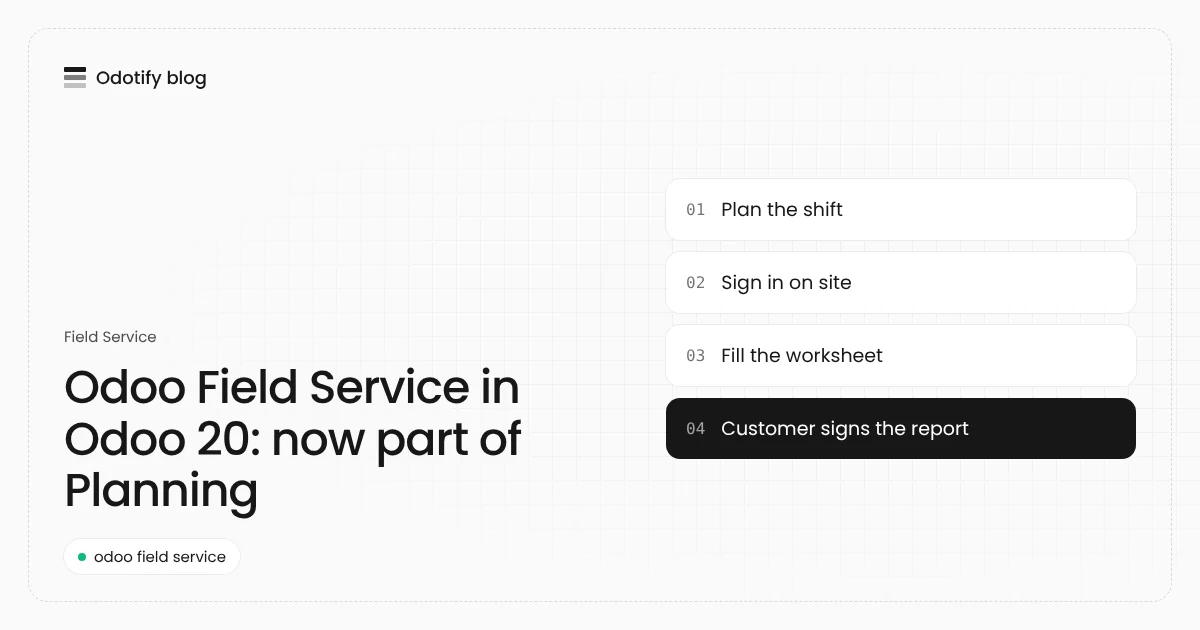
Field Service is the part of Odoo that plans on-site interventions and records what happened there: time, materials, notes, photos, and the customer's signature. A typical flow is: a customer buys a service or opens a helpdesk ticket, a dispatcher schedules a technician, the technician goes on site, fills in a worksheet, adds the spare parts used, and the customer signs a report. The time and materials then flow into a sales order and an invoice.
Up to Odoo 19, this was its own app, built on top of Project tasks. Odoo 19.0's documentation still has a standalone Field Service section.
What changed in Odoo 20?
The Odoo 20 release notes (September 2026) state that the Field Service app has been discontinued and its features are now integrated into the Planning app. Interventions are no longer project tasks; they are Planning shifts with extra field service fields.
| Odoo 19 | Odoo 20 | |
|---|---|---|
| Where interventions live | Field Service app (project tasks) | Planning app (shifts) |
| How to enable | Install Field Service | Planning, Configuration, Settings, enable Field Service |
| Technician's view | Field Service tasks | Planning, My Planning and My Map |
| Worksheets, products, report | In Field Service | In the Field Service section of Planning settings |
The same release notes list new field service features in Odoo 20:
- Map view showing both shift locations and technician availability.
- Product barcodes: add products to a shift by scanning them.
- Studio fields shown on the field service report.
- Routing preferences on the map: an ordered mode that follows the order of the addresses, or an optimized mode.
How do you set up Field Service in Odoo 20?
Install Planning, then enable Field Service and the features you need in its settings. Each option sits in the Field Service section of Planning, Configuration, Settings.
| Setting | What it adds | Note |
|---|---|---|
| Field Service | Customer, sales order and worksheet fields on shifts | The main switch |
| Worksheets | Custom forms for the technician to fill | Also turns on the customer report |
| Billing | Invoicing of time and materials | Installs Sales; turns on Products and Customer report |
| Products | Add materials from the shift | Needs Sales access rights |
| Quotations | Create a quotation from a shift | Needs Billing |
| Geolocation | GPS position at sign-in and completion, in the chatter | Browser must allow location |
| Hide prices on customer report | Report without prices | Needs Billing and Products |
Steps to plan and complete an intervention in Odoo 20
- Go to Planning, Configuration, Settings, enable Field Service, and click Save.
- Create the intervention as a shift: directly in Planning, from a sales order, or from a helpdesk ticket.
- Fill in the Customer (with a valid address if you want itineraries), the Sales Order if it is billable, and the Worksheet template.
- Tick Under warranty if materials and services added from the shift must not be invoiced.
- Publish the shift. A shift must be published and have a customer before work can start.
- The technician opens Planning, My Planning, clicks the intervention, then Sign In.
- On site, they add Photos and Products, and fill the Note and Worksheet tabs.
- They click Complete. Odoo updates the start and end time and the allocated time, and generates the customer report.
- Open Customer Preview on the shift and click Sign Report to collect the signature and send the report.
How do worksheets work?
A worksheet is a form template with property fields (checklists, text, numbers) that the technician fills in the shift's Worksheet tab. Create templates in Planning, Configuration, Worksheet Templates: click New, give a name, then add a property for each field. The first template in the list is the default; drag templates to change the order. A product can carry its own default worksheet, so a "boiler service" product always opens the boiler checklist.
Editing a template from a shift changes it for every shift that uses it, so keep one owner for templates.
How does billing work for field service?
An intervention is billed when it is linked to a sales order, and Odoo creates one automatically when products are added to a shift without one. It is linked when the shift was planned from a sales order, when someone selects a sales order on the shift, when products are added from the shift (unless it is under warranty), or when the assigned employee has a Service to Bill set on their form.
Time-based invoicing needs the Project and Timesheets apps: assign at least one employee, link a project that is Billable with timesheets enabled, and Odoo invoices the shift's allocated time, which is updated at sign-in and completion. A special rate per technician is a dedicated service product on the employee form (Planning, Configuration, Employees, Settings tab).
How do maps and itineraries work?
Technicians see the day's interventions on Planning, My Map; administrators see every resource on Planning, Maps. Each intervention needs a valid customer address to appear. "Navigate to" opens directions in Google Maps. For a full itinerary on the map inside Planning, Odoo uses its Mapbox integration, which you configure separately.
What does Odoo Field Service cost?
Field service is part of Odoo Enterprise, so it is included in Odoo's Standard and Custom plans, not in Community. Planning is not in the Odoo Community source code (there is no planning module in odoo/odoo 20.0).
Technicians can often be Light users. Odoo's pricing page lists Light users at US$8.90, and names "My Planning" and "Field Services" among the things a Light user can do, next to time off, expenses and barcode operations. A technician who only works their own shifts does not need a full user licence; a dispatcher who plans everyone's shifts does.
The One App Free plan gives one app with its dependencies free for unlimited users, so Planning alone can be tried for free on Odoo Online, but Billing pulls in Sales and makes it more than one app.
Hosting is separate from licences. On Odoo Online it is included; on Odoo.sh or your own server you pay for the hosting yourself. Compare the options in best Odoo hosting and estimate the total on the Odoo pricing guide.
Is there a free field service module for Odoo Community?
Yes: the Odoo Community Association (OCA) maintains fieldservice, licensed AGPL-3, for Odoo 18.0 and 19.0. On 26 November 2026 the OCA field-service repository had a 19.0 branch (module version 19.0.1.3.1) but no 20.0 branch yet. It is a different design from Odoo's: its summary is "Manage Field Service Locations, Workers and Orders", it builds on territories (base_territory), and the same repository holds many add-on modules.
If you need field service on Community today, run Odoo 19 with the OCA modules and wait for the 20.0 migration before upgrading. If you are on Enterprise, Odoo 20 gives you the Planning-based version.
How do you upgrade from Odoo 19 Field Service to Odoo 20?
Treat it as a data migration, not a version bump: interventions move from project tasks to Planning shifts, so test the upgrade on a copy first. Practical checks on the upgraded copy:
- Open past interventions and confirm customers, worksheets, timesheets and signed reports are there.
- Rebuild any automation, Studio views or reports that used Field Service tasks.
- Retrain dispatchers: the day view, Gantt and map are now Planning screens.
- Decide which technicians become Light users before your renewal.
Enterprise databases are upgraded through Odoo's upgrade service. The general procedure, with a rehearsal on staging, is in the Odoo upgrade guide, and the version differences are in Odoo 19 vs Odoo 20.
Where Odotify fits
Odotify runs Odoo 17 to 20, Community or Enterprise, on your own server at the cloud provider you choose. For a field service team that means a staging copy (Starter plan and up) to rehearse the move from the Field Service app to Planning, daily backups off the server on paid plans, and version upgrades that run on a staging copy first. Enterprise licences stay between you and Odoo. See the pricing page or the Odoo.sh alternative page if you are coming from Odoo.sh.
FAQ
Is Odoo Field Service discontinued?
The separate app is. In Odoo 20 its features moved into the Planning app, where interventions are shifts with worksheets, products, billing, maps and a customer report.
How do I enable Field Service in Odoo 20?
Go to Planning, Configuration, Settings, enable Field Service in the Field Service section, and click Save. Then enable Worksheets, Billing, Products or Geolocation as needed.
Is Odoo Field Service included in Odoo Community?
No. Planning and field service are Odoo Enterprise features. On Community you can use the OCA fieldservice module, available for Odoo 18 and 19.
Can technicians use Odoo Field Service with a Light user licence?
Yes, for their own work. Odoo's pricing page lists My Planning and Field Services among Light user capabilities, at US$8.90 as listed on 26 November 2026.
What happens to my Odoo 19 Field Service tasks in Odoo 20?
In Odoo 20, interventions live as Planning shifts. Run a test upgrade on a copy of the database and check that past interventions, customers, worksheets, timesheets and signed reports came across before you upgrade production.
Can I track a technician's location in Odoo?
Only at two moments: when they click Sign In and Complete on a shift, if Geolocation is enabled. The coordinates are logged in the shift's chatter with a View on Map link.
Sources
- Odoo 20.0 documentation, Field service (Planning): https://www.odoo.com/documentation/20.0/applications/services/planning/field_service.html
- Odoo 19.0 documentation, Field Service app: https://www.odoo.com/documentation/19.0/applications/services/field_service.html
- Odoo 20 release notes, Field Service merged into Planning: https://www.odoo.com/odoo-20-release-notes
- Odoo pricing page, Light users (read 26 November 2026): https://www.odoo.com/pricing
- OCA field-service repository, fieldservice manifest for 19.0: https://github.com/OCA/field-service/blob/19.0/fieldservice/__manifest__.py

Odotify team
Odotify hosts Odoo on servers its customers own. This article was researched against live search results and the Odotify codebase.